
 (Credit: SFIO CRACHO / Shutterstock)
What’s the fastest way to share a Wi-Fi password with visiting friends and family? You could write it down and hand it to them on a piece of paper, but that’s not very secure. And setting up a guest Wi-Fi network can be a hassle. Luckily, there are ways to quickly share these credentials without compromising your network. Here's how to wirelessly share your Wi-Fi password from an iPhone, iPad, Mac, Android device, and Windows PC.
Share Passwords Between iPhone, iPad, and Mac
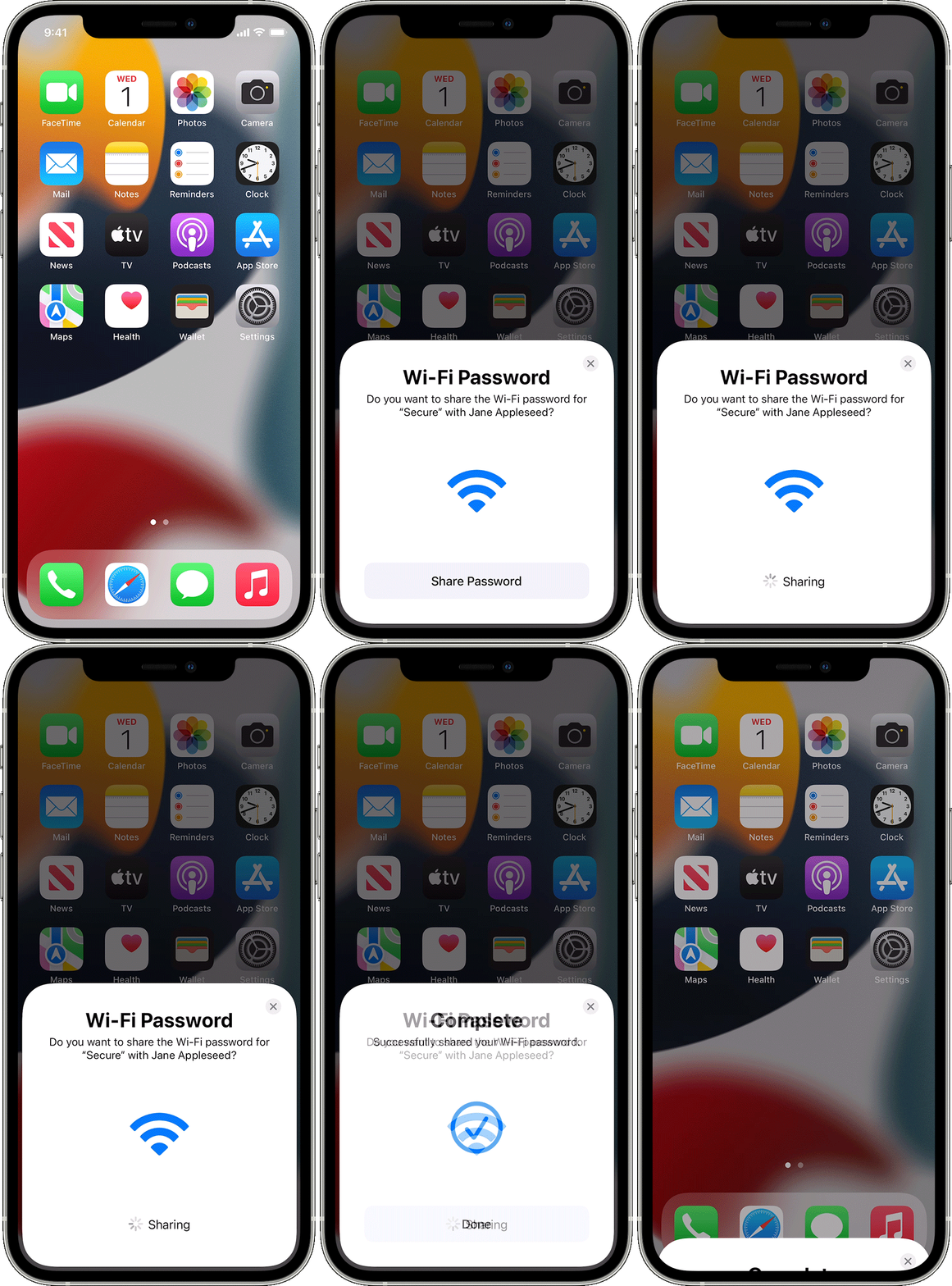
Apple makes this a seamless process, as long as you all have an iPhone, iPad, or Mac. In order to share your password, both devices should have Wi-Fi and Bluetooth turned on and be signed into iCloud with their respective Apple accounts. You each also need to have the email address of the other saved in the Contacts app.
Once all these requirements are met, bring the two devices within Bluetooth and Wi-Fi range and make sure the sharing device is unlocked and connected to the network. Have the device without internet select the network to be shared and a message should pop up on the sharing device’s screen. Tap Share Password to give the other device access to the Wi-Fi network.
Share Passwords From Android

Android devices share Wi-Fi passwords through QR code generation, so Apple devices can receive login credentials this way as well. In order to share and receive a password, your Android device must be running Android 10 or later. First, make sure you’re connected to the network you wish to share; the process then depends on your phone manufacturer:
- Samsung Galaxy: Open Settings > Connections > Wi-Fi and tap the gear icon next to the network name. Select the QR code icon at the bottom of the screen to generate a unique QR code that can be saved to your phone or shared to a contact.
- Google Pixel: Go to Settings > Network & internet > Internet, select the gear icon, then tap the Share icon under the network name. A QR code will appear on the screen, with the Wi-Fi password written in plain text underneath. This code can also be shared via Quick Share.

The network connection is shared when the other person opens their phone's camera and scans the QR code. All they need to do is tap the pop-up message on the screen to open their Wi-Fi settings and connect to the network.


Are you the one in need of internet? Most smartphones have built-in QR code scanners at this point, but you can also head to the Wi-Fi settings page. Here, you will find a tiny QR code icon at the top of the page that will allow you to scan codes once tapped.
QR Code Generator
 (Credit: qr-code-generator.com)
For devices that cannot create a QR code or use Apple's Wi-Fi sharing method, use a free QR code generator to share the password. This is also a good replacement for Microsoft's Wi-Fi Sense, since the feature was disabled in Windows. You can find plenty of tools online; just make sure it supports Wi-Fi information. For this demonstration, I am using QR Code Generator, but QiFi.org focuses specifically on Wi-Fi codes, while Qrafter has a free iOS app.
All you need to do is select the Wi-Fi setting (if there is more than one mode), then enter the SSID (network name) and password. You may also need to enter the security type, so check the Wi-Fi settings on your device if you don't already know it. Once all the information is entered, click Generate to produce the code. This QR code can then be used by any device with a built-in scanner or mobile app.
Download the code as an image and print it out, send it to those in need, or simply have them scan the code from your screen. QR Code Generator even allows you to embed the code or customize what the code looks like by changing its shape, adding color, or even inserting a logo.